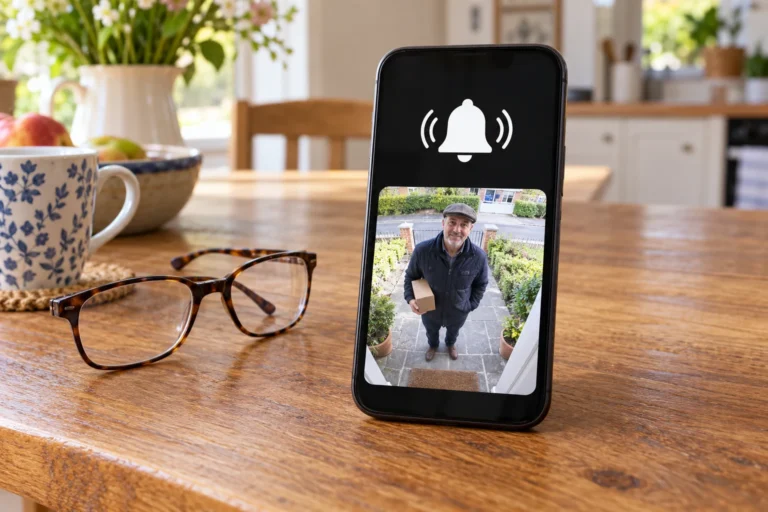
A printed prompt card can make a familiar doorbell task easier to repeat after a demonstration. The most useful card contains the few steps the resident actually wants, written in words that match the installed equipment.
Make it together and test it before treating it as finished. A generic set of instructions found online may use different buttons, screens or features, even when the equipment looks similar.
1. Choose two or three everyday tasks
Ask the resident which actions they would like a reminder for. These might be checking who rang, answering a supported call and returning to the normal screen. Leave less frequent tasks, such as changing account settings, in the proper handover instructions.
Write the starting point for each task. “When the doorbell rings” is different from “When I open the app later”. A clear starting point prevents a card from becoming confusing when the phone shows a different screen.
Keep each instruction to one action. A line that asks someone to open, select, swipe and confirm all at once is difficult to follow. If a sequence is long, ask whether there is a simpler supported way to do the same ordinary task.
2. Use the real labels and a comfortable layout
Copy button names from the installed model during a demonstration, then ask the installer to confirm the wording. Do not invent a universal “answer” symbol or assume its position is the same on every device.
Use a layout the resident finds readable: a clear typeface, comfortable size, good contrast and enough space between steps. Ask them to choose where the card will be kept. It should be easy to find without exposing private information to visitors or people outside.
A blank structure can help:
- Task I want to do: ______.
- The screen or situation I start from: ______.
- First action, using the actual label: ______.
- Next action: ______.
- How I know the task has finished: ______.
Add a simple labelled picture only if it genuinely helps and accurately matches the equipment. Avoid squeezing so much onto one card that nothing is easy to find.
3. Practise from the card and revise it
Arrange a calm rehearsal with a willing helper. Let the resident use the card while the helper stays quiet, unless assistance is requested. The purpose is to discover unclear wording, not to score how much somebody remembers.
Notice where the person hesitates. Does a step use an unfamiliar word? Is the named button on another screen? Does the instruction assume that the phone is already unlocked? Rewrite the card around those actual difficulties.
Try the revised wording once more, then stop when the resident wants to. They can choose a further demonstration or a different arrangement if the card is not useful. Our app guide offers more practice ideas.
4. Add a safe route for help
Include the verified technical contact number and the date the card was checked. Keep passwords, recovery codes, camera verification codes and private family information off it. A card left on a table should not give somebody account access.
Write a simple fallback such as “If the screen is different, stop and ask for help using this number”. Avoid instructions to reset equipment whenever something looks unfamiliar. Keep the fuller handover information in an agreed place.
Review the card after an app update or equipment change. Our installation overview can help you prepare questions about explanation and handover.
Call Home Care Security on 0333 666 1983 to ask for the correct wording for your installed controls and clarify the support available.