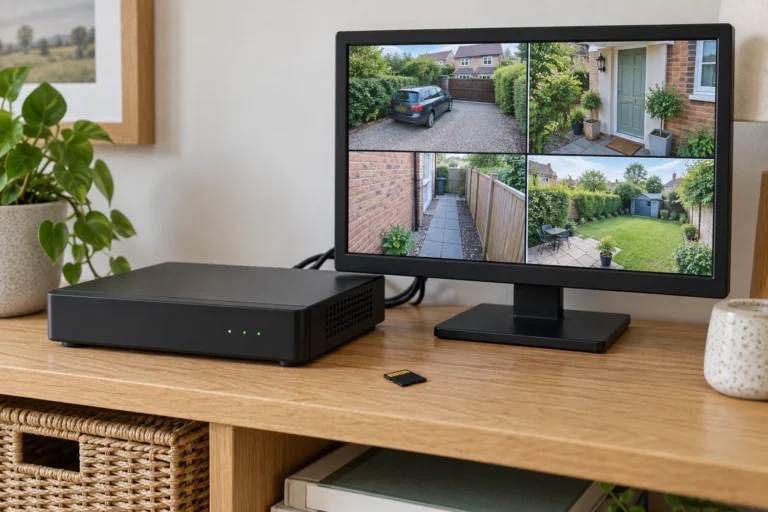
To identify a camera recording view, start with the picture and agreed camera name. Then confirm them through an authorised test. A label such as “Camera 2” may be familiar to the installer but unhelpful to someone trying to find an entrance recording later.
A short view map can connect the names on the screen with ordinary places around the home. Keep it private and make it with the resident. It should help people use the agreed system, not document every part of the property or expand who can watch it.
Begin with the camera views already authorised
Open the normal viewing arrangement with the account you are entitled to use. List only the views available to that account. If a camera is absent, do not borrow the main password to investigate; ask the account owner or support whether the permission is correct.
For each view, note a plain location such as “front entrance” or “rear gate”. Avoid labels containing a resident's name, health information or household routine. Do not assume that every family member needs a copy of the map.
Our guide to information for families can help clarify who should take part. The purpose is to understand existing permission, not silently broaden it.
Match the camera label to the visible scene
Look for an ordinary fixed feature within the intended view, such as the entrance door or a garden gate. Describe it without identifying neighbouring homes. If the label and scene do not seem to match, record that uncertainty before changing anything.
A scene can look different at night or after work around the house. Do not rely on one colour, a temporary parcel or a vehicle that might move. Ask the installer to explain any unfamiliar orientation or camera numbering.
Your private map can have three columns: name shown, place believed to be shown, and confirmation needed. “Rear entrance — not yet confirmed” is more useful than a confident but wrong label.
Use one ordinary event to confirm a view
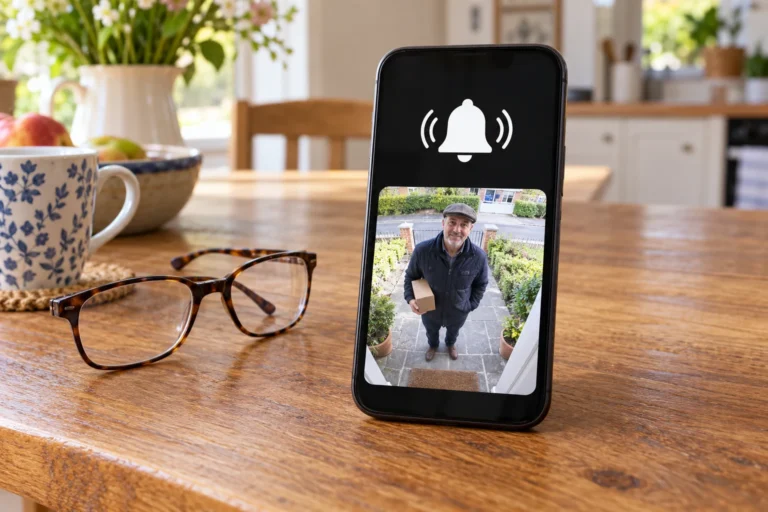
If the resident wishes, ask a trusted person to perform an ordinary action within an agreed area, such as ringing the front doorbell. Note the date and time. Stay within normal safe access; there is no need to climb, reach equipment or enter a neighbour's property.
Look for that event through the playback process already explained for the system. Confirm the scene as well as the time label. If recording is not included or the account cannot play it back, note that limit rather than treating it as a fault.
- Which view was selected?
- What familiar feature confirmed the location?
- What was the test action and actual time?
- Could the relevant recording be played?
- What, if anything, remains unclear?
This is a usability check, not a test of detection performance. One correctly matched event does not show that every future event will be recorded or identified.
Ask before changing camera view names
Names may appear differently in an app, recorder or another authorised user's account. Ask which naming controls are supported and whether changing one label affects other places. Do not assume a new label in one screen changes every record.
If a rename is agreed, keep the old and new names in the installation notes with the date. That helps when someone later asks about an older event or a previous support conversation. Avoid changing several labels while investigating a real incident.
For relevant footage already requested by an authority, preserve the original and describe any naming uncertainty separately. A clearer household label should not become a reason to alter potential evidence.
Keep the map useful and private
A map does not need a detailed floor plan. A short list of agreed views may be enough. Keep account credentials, serial numbers, access codes and private camera images out of a general family document.
For example, a fictional note might say: “Screen label 2 — rear entrance — confirmed by agreed test on 17 November — playback shown to resident.” It describes the check without exposing the property's layout or the footage itself.
Review the note after an authorised camera move or equipment replacement. If the view changes unexpectedly, describe what looks different and ask for help rather than physically adjusting the equipment.
Resolve a view mismatch without changing the evidence
If the picture and label disagree, first record which screen you were using. Was it live view, an event entry or playback? Note the selected camera label and date. This gives support a specific starting point without requiring a screenshot of private activity.
Next, compare the scene with the private view list. Look for the fixed feature already agreed with the resident. If you still cannot identify it, mark the entry as unconfirmed. Do not rename it to match your best guess.
A camera recording view can also be unclear because the household uses different names for the same entrance. Agree one plain description, then ask how it should appear in the supported controls. Keep any old label in the dated change record so earlier notes remain understandable.
When another authorised person helps, ask them to describe what they see using their own permitted account. They do not need broader access to confirm a familiar entrance. If their available views differ, record that question for the account owner rather than swapping credentials.
Finally, check that the resident can use the completed list comfortably. A short description beside each agreed view may be easier than a detailed diagram. Keep unconfirmed entries visible until the provider explains them.
Make the next enquiry specific
Recordings and storage explains related playback questions. For a naming or view problem, contact Home Care Security with the label shown, intended entrance and the question you need answered. Ask what support is available for the actual system.
Do not send private footage merely to demonstrate a label. A written description may be enough for the first conversation; agree a suitable transfer route if further material is needed.
Camera naming, playback and account permissions depend on the installed model and app version. Ask for the instructions that apply to your system.