To describe a security camera notification delay, record the event time first. Separately, note the displayed time and alert arrival. Those observations can help support investigate. They do not, by themselves, identify the cause or prove that recording stopped.
Start with one clear example rather than changing several settings. Ask the resident whether they want help making a short record, and use only the account and camera views they have agreed to share.
Describe the late camera alert
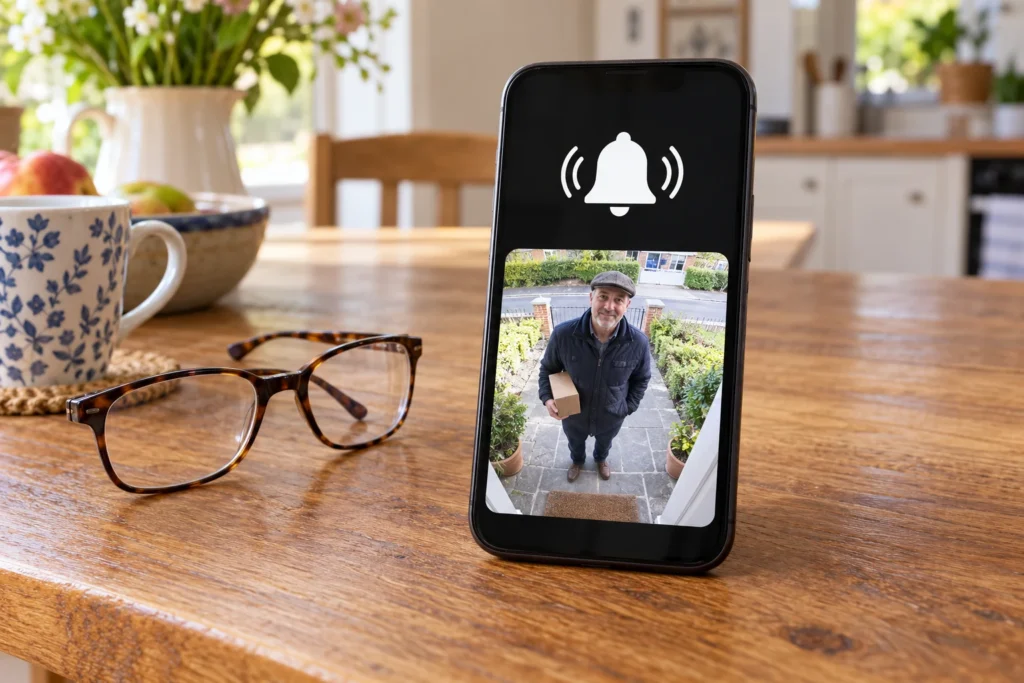
Describe the particular function. Did a doorbell call appear late? Did a notification arrive after you had already seen a visitor? Or did you open an event list later and notice an earlier timestamp? These are different situations.
For example, “I saw the delivery at about 14:00, and the phone notification appeared at 14:07” is a useful observation. “The camera was seven minutes slow” adds a diagnosis that has not been established. Use approximate times honestly if you did not check a clock at the time.
Keep the wording factual even when the delay is frustrating. A single event may not show whether the same thing happens every day or whether another authorised device behaves differently.
Keep four time fields separate
Use a small log rather than a collection of screenshots:
- Event time: when the ordinary activity happened, if known independently.
- Displayed event time: the date and time shown in the app or recording.
- Alert arrival: when the phone actually displayed the notification.
- Time noticed: when you first saw it, if different from its arrival.
Leave a field blank if you cannot establish it. Do not infer the arrival time from when you picked up the phone. Likewise, a displayed label is not necessarily a direct measurement of delivery time.
A time discrepancy needs its own record. Keep it separate from a notification that arrives later than an accurately labelled event. Ask support which component supplies the displayed time before making any adjustment.
Record the phone context for the delayed alert
Note the phone type, app name and version if easily available. Say whether you were using the home connection or away from home, and whether the app was already open. Record a known phone or app change as background information, not proof that it caused the delay.
Hik-Connect documentation describes an in-app push notification control. The correct checks depend on the installed app and phone version. Do not copy a sequence of settings from another person's phone or turn off privacy controls to see what happens.
If another authorised family member received the same event, they may choose to note their own arrival time. Do not add a new viewer simply to run this comparison. Different observations are useful, but they still do not settle the technical cause.
Use an agreed test only if it helps
If support asks for a test, choose an ordinary doorbell ring or other supported event with the resident's agreement. Write down the test time before looking for the result. Avoid repeated rings, unusual behaviour outside the home or changes to detection settings.
Record the result once. A successful test establishes what happened during that test, not a permanent guarantee. If it does not produce the expected notification, describe the steps and stop rather than trying a succession of resets.
For a real incident, prioritise the appropriate reporting route and preserve relevant original footage. Do not delay urgent help while trying to diagnose a phone notification. Camera access is not an emergency response service.
Send a concise support request
A fictional example might read: “Front entrance alert. Ordinary test at 11:20 on 16 November. App event label 11:20. Notification noticed at 11:24; actual arrival unknown. Phone was on mobile data. No settings changed.”
This tells support what is known and what is not. Add any exact on-screen message, but keep passwords, verification codes and private footage out of the initial enquiry. Ask which additional information is needed and how it should be supplied.
Our camera alerts guide covers the broader expectations to discuss. A notification does not promise that someone will notice or respond immediately. Keep the household's ordinary contact arrangements in place.
Use a repeatable notification delay log
Keep one entry for each ordinary observation. Start with the date, camera label and type of alert. Then add the four time fields above. Use “unknown” where necessary, so a later reader can distinguish missing information from a measured delay.
For example, you might see an alert when unlocking your phone after lunch. That establishes when you noticed it. Unless you observed its arrival, it does not establish how long delivery took. Explain that limit instead of calculating a precise delay from an earlier event label.
Next, note whether you were watching the phone during an agreed test. Use the same description for another test, if support requests one. Keep a known result even when it differs from an earlier observation. A mixed record can be more useful than a summary saying notifications always fail.
This security camera notification delay log is for describing delivery observations. It is not a clock-setting tutorial. If the displayed event time itself appears wrong, ask support to investigate that separate issue before interpreting a timing comparison.
Stop collecting examples once you have enough to explain the question. There is no need to keep watching the resident’s home or recruit extra viewers. Share the short written log through the verified support route and ask what further evidence, if any, is necessary.
Check notification timing after supported changes
If an authorised specialist recommends a change, record what changed and when. Repeat the agreed ordinary test and note the result. Do not describe the issue as resolved solely because a setting was saved; the relevant function still needs checking.
Contact Home Care Security with your short log and ask what support is available for your setup.
Source
Hik-Connect notification guidance, reviewed 11 November 2026. It confirms a supported notification setting, not the cause of a delay or a guaranteed delivery time.