Event recording versus continuous recording is a question about what your system saves, not simply what you can see live. Before relying on a clip list, ask which recording arrangement applies to each camera and how you would find an ordinary event.
The answer depends on the equipment, storage and configuration. A description in a brochure does not establish what was fitted or enabled in your home. This guide gives you a timeline exercise and questions to take to your installer, rather than instructions for changing recording settings.
Separate the view from the recording
A live view shows what an authorised viewer can see at that moment. A recording is saved material that can be played back. Do not use a successful live-view test as proof that the same period is being stored.
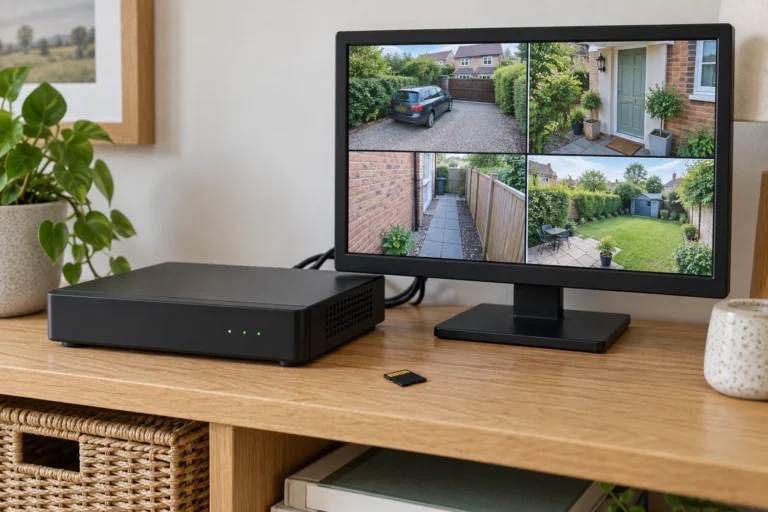
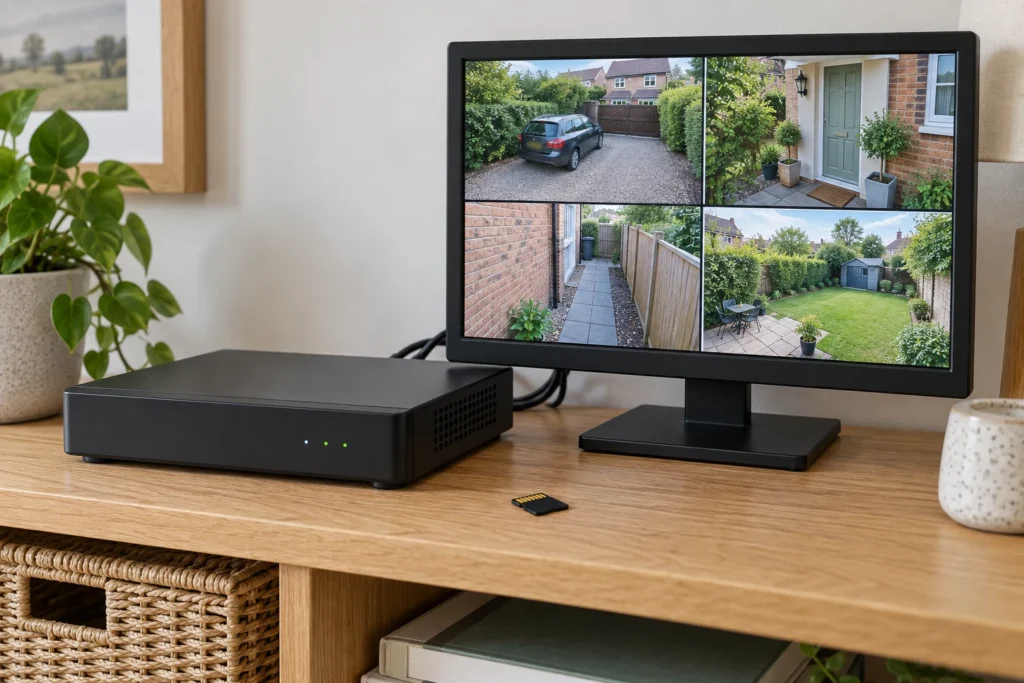
Ask the installer to describe the arrangement in plain terms. Which cameras record? Where is the material stored? Does a schedule affect it? Which account can play it back? Our introduction to recordings and storage covers those wider ownership questions.
Keep the answer against the camera name, not just the overall package. Different views may have different settings or capabilities. “The system records” is less useful than a clear explanation of the particular view you intend to use.
What event and continuous recording describe
Manufacturer documentation describes time-based continuous recording and recording triggered by configured events. These are examples of arrangements supported by particular products, not a promise that every camera offers both.
For an event-based arrangement, ask what counts as the event and what footage is saved around it. Do not assume that every movement produces a clip or that a clip contains everything before and after the trigger. For continuous recording, ask which period the schedule covers and what conditions or storage limits still apply. The word continuous is not a guarantee of uninterrupted operation.
Also ask whether the app's event list is the same as the complete playback view. A list of highlighted events may not describe all available recordings. Only the instructions for your setup can settle that question.
Use a fictional timeline to ask better questions
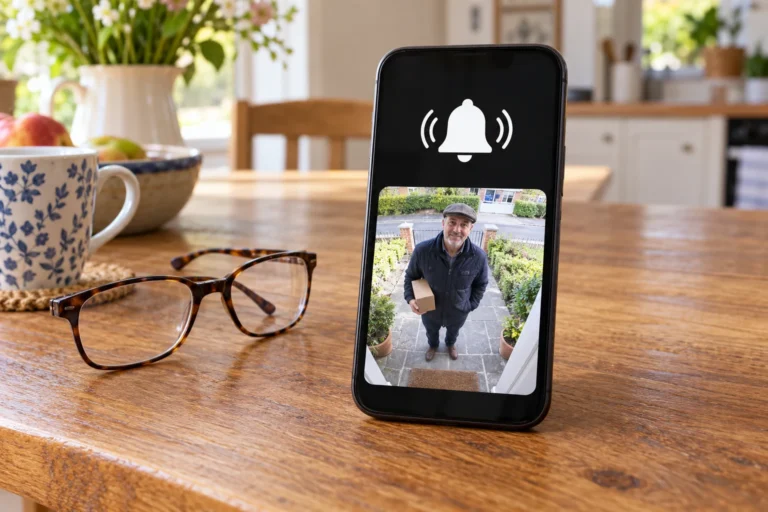
Imagine a visitor approaches at 10:02, rings at 10:03 and leaves at 10:04. This is an illustration, not a test result or a claim about your equipment.
- Live viewing: you open the view at 10:03 and see the visitor then. What, if anything, was saved before you opened it?
- Event clip: the list shows an entry labelled 10:03. Does playback include the approach and departure, or only part of the visit?
- Continuous arrangement: the schedule is said to cover that period. Can the authorised user find and play the relevant minutes?
The questions differ even though the visit is the same. A thumbnail, an alert and a playable recording are different observations. Write down which one you actually found instead of treating them as interchangeable.
Try an agreed recording timeline exercise
If the resident wants to practise, arrange one ordinary test with a trusted person. Note the date, actual time and camera view before starting. Use only familiar functions already explained at handover; do not change detection zones or recording modes just to create a test.
Afterwards, try the supported playback route. Record what you can see, the displayed time and whether the relevant period plays. If you cannot find it, leave the result as “not found using these steps”. That does not prove the footage was never recorded.
A practice should remain proportionate. Avoid involving neighbours or collecting extra private footage. Never use a genuine incident as an opportunity to experiment with settings or delete recordings.
Prepare a recording enquiry
Give support enough detail to understand the question without sending footage unnecessarily:
- Camera name and equipment model from your paperwork, if known.
- Date and time of the ordinary test.
- What you expected to find and where you looked.
- Whether you saw a thumbnail, an alert or playable footage.
- Any message shown and recent change you know about.
Keep passwords and verification codes out of the enquiry. Ask for an explanation of the supported recording arrangement and the next safe check. If footage relates to an incident, preserve the original and follow the appropriate verified reporting guidance.
Read the timeline without jumping to conclusions
This exercise answers one narrow question: what saved material can an authorised viewer find around a known event? It does not replace the wider recordings and storage guide or set the household’s retention policy.
Suppose the fictional 10:03 entry opens a short clip. Write down the first and last moments you can actually play. If the approach is absent, ask whether another playback route covers it. Do not assume the thumbnail marks the start of every available recording.
Alternatively, you may find playable footage but no event entry. Record that result separately. The recording and the event list are different things to ask about. Support can explain what each screen means for the installed setup.
When comparing event recording versus continuous recording, keep the resident’s purpose in view. Do they want to review an agreed entrance event? What access and storage arrangements would support that task? Ask for the explanation before requesting a change that could save more private activity.
A useful handover answer identifies the camera, recording arrangement, playback route and known limits. It also names anything still untested. Keep that answer with the installation notes. Review it after an authorised change, rather than treating this single exercise as proof of ongoing recording performance.
Put the recording answer in the handover notes
Once the arrangement is clear, record it in a short sentence beside each view. Include the date checked and who explained it. Leave uncertain retention periods or features as questions rather than filling them with a guess.
Contact Home Care Security to ask which recording options and support apply to your proposed or existing installation. The resident's needs should lead the discussion; more saved footage is not automatically the right choice.
Source
Hikvision recording schedule documentation, reviewed 11 November 2026. It describes particular software capabilities; confirm the exact model and configuration before applying them.