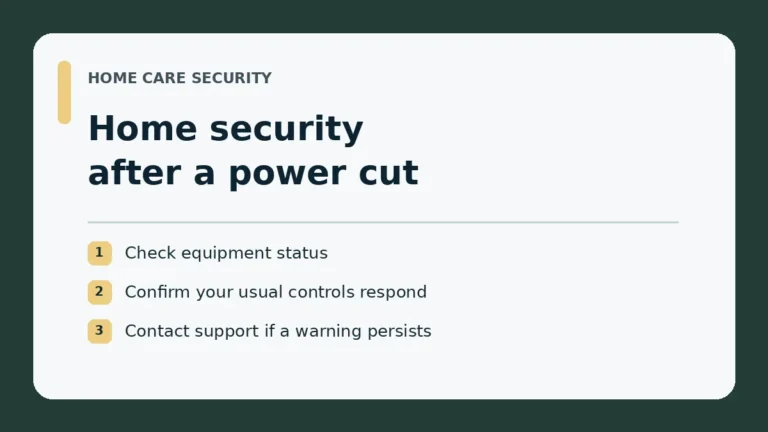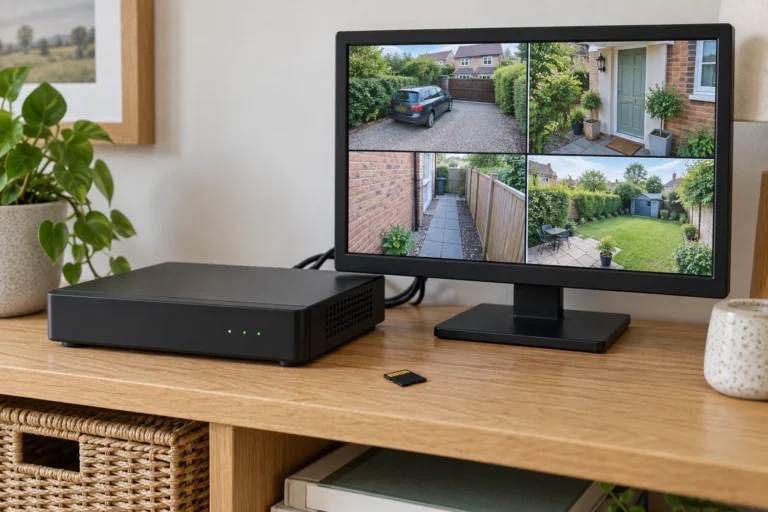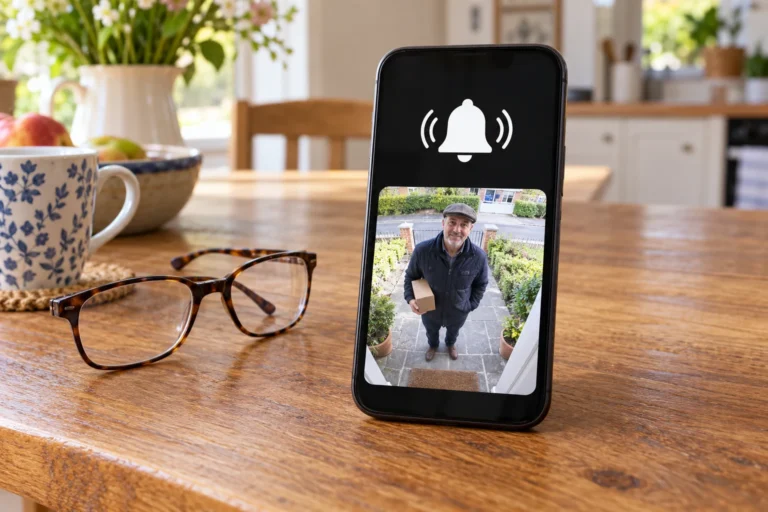
A short checklist can make a camera problem easier to explain without turning you into a technician. A clear description of what happened, when it happened and which equipment was involved is usually more useful than a guess about the cause.
Prepare the details with the resident, using their own account of the difficulty. If a relative is making the enquiry, agree what information they may share and how the resident wants to stay involved. Never include passwords or verification codes in a general support message.
1. Describe the difference between expected and actual
Start with the task you were trying to complete. Then describe the result you saw. For example: “I opened the front-door view at lunchtime. I expected a live picture, but the screen showed an offline message.” This is more useful than saying the whole system is broken.
Copy an on-screen message accurately where possible. Note whether it appears immediately or after waiting, and which view or function it concerns. If you are unsure of a term, describe its location or appearance rather than inventing a technical diagnosis.
Separate observations: can you open the app, see a view, play an existing recording or notice a doorbell call? Report only the functions you actually checked. Our remote-viewing guide can help you organise a few ordinary observations.
2. Build a short timeline
Write down when you first noticed the problem and the last time you remember the task working. Approximate dates are fine if labelled as approximate. Include whether it happens every time, only occasionally or in one particular situation.
Note recent changes that could be relevant, such as a new phone, an app update, a router replacement or a loss of power. Describe these as background information, not proof of what caused the problem. Two events happening close together does not settle the diagnosis.
A useful timeline might read: “New router fitted Tuesday; first checked camera Wednesday morning; app opened but front-door view unavailable.” Add any steps already tried so support does not ask you to repeat them unnecessarily. Avoid experimenting with resets merely to make the list longer.
3. Gather safe equipment details
Look for the model on your installation paperwork, purchase record or an accessible information screen. Add the app name and version if you can find them without difficulty. Do not climb, open equipment housings or disturb cables to read a label.
- Camera, doorbell or recorder model, if known.
- App name and the phone or tablet type.
- Which camera or feature is affected.
- The message shown and the time you saw it.
- Any relevant recent change and checks already made.
If you cannot find a detail safely, say “not known”. Keep passwords, recovery information, account verification codes and device access codes out of the report. Ask why any additional identifier is needed and how it should be supplied privately.
4. Share a useful screenshot carefully
A screenshot can clarify a message, but it may also reveal faces, addresses, contact details or unrelated camera views. Include only the area needed to explain the issue. For an ordinary technical enquiry, crop or conceal unnecessary information on a copy and check the resulting image before sending it.
If the image or footage concerns an incident, preserve the original separately and use the appropriate reporting advice. A support illustration and potential evidence serve different purposes. Do not publish either in an open discussion simply because someone offers to help.
Use contact details from the provider’s official website or paperwork you already trust. The NCSC points users to the manufacturer’s website for guidance when a device has problems. Be cautious about unexpected messages claiming that urgent access to your account is needed.
Prepare a short problem description and call Home Care Security on 0333 666 1983. Use the verified contact page to check the enquiry route before sharing any supporting material.