Shared tablet camera privacy is worth discussing before a household device becomes the usual way to check the front door. A tablet may move between people for shopping, games or video calls. That everyday sharing does not settle who should see the home's camera views.
Start with the resident's wishes, then check what the actual tablet and camera app support. There is no single setting that makes every shared device suitable. This guide helps you describe the arrangement you want, ask the right questions and test it without exposing private footage.
Separate sharing the tablet from sharing the cameras
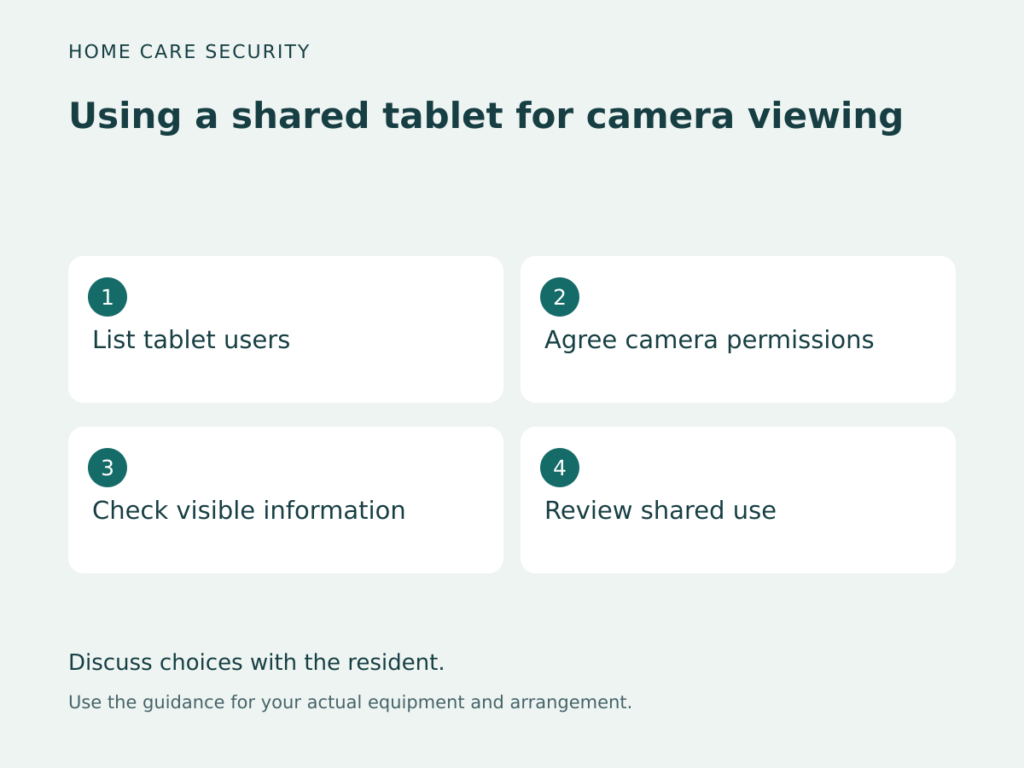
List the ordinary users of the device. Include people who borrow it occasionally, not just the person who bought it. Next, ask which of those people the resident has agreed may view cameras, recordings or notifications.
The lists may be different. A visiting grandchild might use the tablet for a game without needing camera access. A relative might help read instructions without needing to open a view. Keep those distinctions visible rather than treating one tablet login as agreement to every application on it.
Our family camera access guide gives a starting point for discussing purpose and permissions. Do not expand the arrangement just to make device sharing easier.
Ask what happens when somebody picks it up
Consider the ordinary sequence: the tablet is left on a table, another person picks it up, and a screen or notification appears. Ask the installer or device provider which information could be visible at each stage.
Can the next person open the camera app without another check?
Could a notification show an image or detail on a locked screen?
Does the tablet support separate users or another suitable separation method?
What happens after the screen locks or the app is closed?
Which controls are available on this exact device and app version?
These are questions, not a claim that all tablets have the same features. Closing an app is not proof that somebody else cannot reopen it. Likewise, do not assume that a separate tablet profile, if offered, provides every privacy boundary the household needs.
Try a harmless household test
Agree a short test with the resident and use an ordinary staged event, such as a helper ringing the bell. Avoid opening genuine private recordings merely to demonstrate a menu. Check the tasks the resident intends to use, then check the situation when the tablet changes hands.
Describe what you actually observe. “A preview appeared while the screen was locked” is useful. “The tablet is insecure” jumps beyond the observation. Note the tablet model, app version and setting name if known, then ask for guidance before changing unfamiliar controls.
Our app support page can help you prepare that enquiry. Do not publish screenshots containing camera views or account information in a general help forum.
Compare possible arrangements
A shared tablet may still suit the household, but it is useful to compare alternatives. Ask whether supported separate access, a different agreed viewing device or a change in how the tablet is used would meet the resident's needs. Do not assume that buying more equipment is the only answer.
For each option, write down the everyday effort as well as the privacy question. A process requiring repeated sign-ins may feel manageable to one person and frustrating to another. Ask the resident to try it at their own pace rather than judging from a product description.
Consider an illustrative household: a resident wants a large screen for checking callers, while family visitors use the same tablet for music. Their question is not simply whether the camera app runs. They need to understand what remains accessible after the resident finishes viewing. The right next step is a supported demonstration of that boundary, not an assumption about a padlock icon.
Keep a short shared-device agreement
A few plain sentences can be more useful than a long set of rules. Record who may view, what they may view, what to do before lending the tablet, and who to ask if the arrangement becomes confusing. Keep passwords and verification codes out of the note.
We use this device for: ______.
Camera viewing is agreed with: ______.
Before another person uses the tablet, we: ______.
If we are unsure, we ask: ______.
We will review this after: a device, account or household change.
Leave a blank where a technical answer is still needed. Do not fill it with an instruction copied from a different phone or app.
Know when to pause
If the supported controls cannot provide an arrangement the resident accepts, pause camera use on the shared device and discuss a suitable alternative. Do not hide access from other residents or install covert monitoring tools. A relative's convenience does not replace the resident's choices.
Contact Home Care Security with the tablet model, app name and the sharing question. Ask what help is available for your installation. Keep passwords, verification codes and private footage out of the enquiry.
Source and review: Home Care Security's existing family-access and app guidance, checked 30 October 2026. Device controls require current manufacturer confirmation; this article does not promise a feature or configuration.